Welcome to Learned! Since you probably won't manage this profile on your own, It is important to invite 1 or a few other users to also take on the Admin role within the company profile. This article shows how to do this.
Step 1. Go to your company profile
First, select the 'Organisation' button on the left of the screen to access the settings of your company.
Step 2. Go to your Members page
Then go to the Members page on the left of the screen. When you first come here, this page is still empty.
Step 3. Invite new users with the Admin role
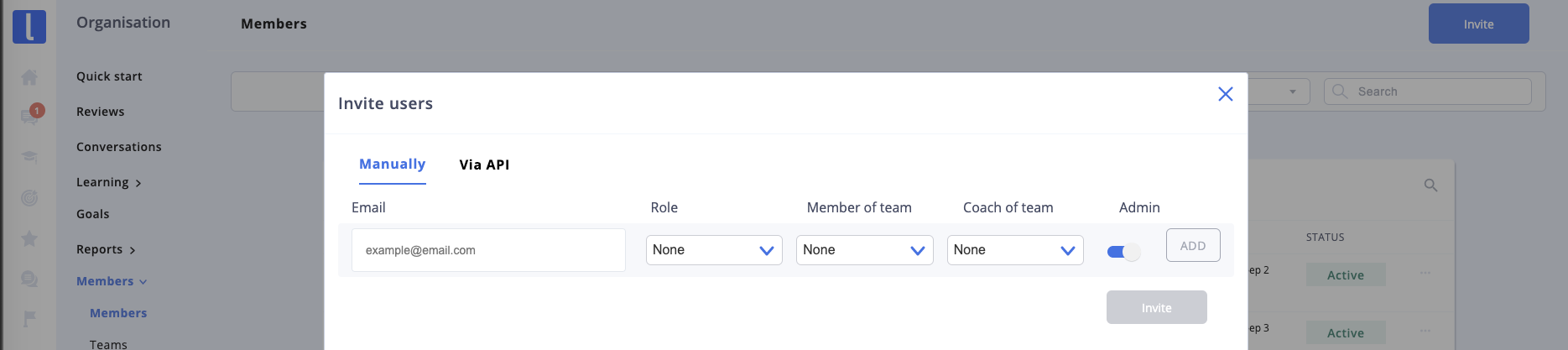
By pressing 'Options' at the top right a pop-up opens in which you can invite new users by email. You can assign it the Admin role directly.
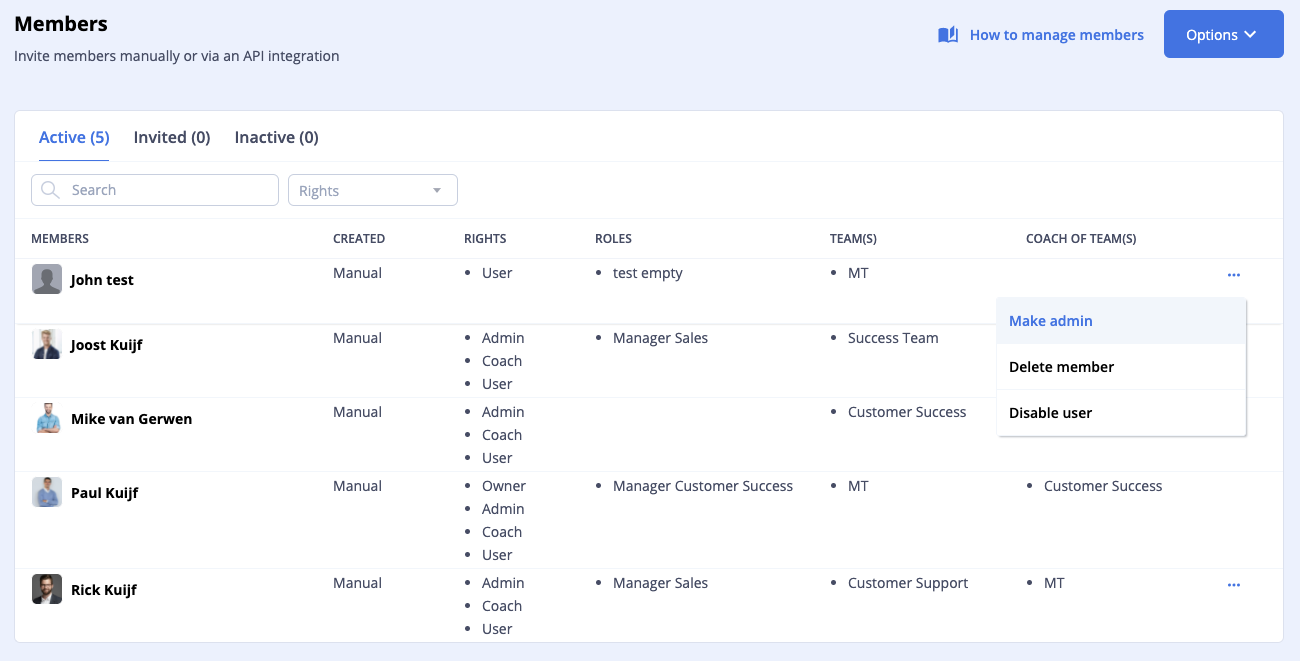
You can still assign the members of your company profile to the Admin role at any time. See the example below. You do this in the settings per user in the list.